It can be pretty tough to fall asleep when your brain is thinking nonstop or anxiety has gotten the best of you, and it seems to only get harder when you're lying in bed listening to yourself breathe. Yet paying attention to that breathing may be exactly what you need in order to find a calm, easy entry into a good night's rest.
Alina Gonzalez, writer for Byrdie, says that one special breathing pattern helps her glide into sleep better than anything else: the 4-7-8 method. After spending multiple nights awake with excitement, the 4-7-8 method was recommended to Gonzalez by a wellness practitioner, which has helped her out tremendously.
The breathing pattern goes as follows: breathe in through your nose for four seconds, hold your breath entirely for seven seconds, and exhale through your mouth for the remaining eight seconds. The entire process takes less than one minute to complete. Repeat as necessary.
You do not need to know any meditation for this trick. Lie down as you normally would.Image via Shutterstock
Why This Sleep Hack Works So Well
So, what's so special about breathing in and out differently? This pattern of inhales and exhales gets not only your lungs, but also your brain working to put you to sleep. When we lie awake, anxiously awaiting sleep, we begin to stress ourselves out over the thought of not sleeping at all. In turn, our heartbeat increases and we take shallow, desperate breaths.
When we worry, panic, or stress out, we do something called under-breathing. As Calm Clinic explains, we worry that we aren't getting enough oxygen, so we panic even more and begin to take faster, shallower breaths to make up for it. Yet we're getting more than enough oxygen—this habit actually fills our system with too much, leading to hyperventilation.
So, the 4-7-8 breathing pattern makes you slow down and take a moment, in a literal sense. When you breathe in slowly for four seconds, you pause and let the breaths sink in. As you hold those breaths for seven seconds, you allow the oxygen to take effect and fill your body. And, finally, when you exhale for eight seconds, you release the carbon dioxide steadily. In response, your heart rate will slow, as your panic drops, and the rest of your body relaxes in turn as you control your breaths.
A Natural Sleeping "Medicine"
As Gonzalez writes, the 4-7-8 breathing technique can feel as fantastic as a sleep sedative. Rather than desperately worrying and trying to rush into sleep, you soothe your entire body and glide gradually into calm.
Gonzalez isn't the only fan or proponent of this one-minute sleep method, either. Dr. Andrew Weil of Harvard University is one of the 4-7-8 method's biggest fans.
Weil recommends using this breathing technique not only when you need to fall asleep quickly, but also any other time you seek a calm state of mind. Use it when you feel upset, so it can soothe you before you react, or even to fight off feelings of strong cravings. He suggests this as a solution for mild anxiety disorders, too.
Yumi Sakugawa, from Secret Tips from the Yumiverse, also recommends the 4-7-8 breathing technique for de-stressing in general, as well as a few other breathing exercises.
Get to Sleep No Matter Your Mindset
The 4-7-8 method can help you to both reclaim your bedtime and slip into sleep almost immediately. With its calming effects, it puts your mind at ease and helps you to drift off without staying up and counting imaginary sheep.
Still need help with sleeping at night? See how to quiet your anxious mind and build better bedtime habits. And, should you wake up during your all-important sleep cycle, you don't have to stay awake—use these tricks to fall asleep once again.
Step 1 Find Good Quality Websites to Submit Videos First and foremost, you need to do your research online and check out good quality streaming websites that have high traffic volumes each day, as well as good quality links without all the spam. Of course, there is a lot of websites doing this right now, and is a niche a lot of webmasters are getting into. But this does not mean you cannot earn some money.
Tips
Find a good quality, high traffic website that accepts links to be submitted.
Check the stats of the website yourself using Alexa.
If the website checks out, sign up for an account.
Most importantly, DO NOT SPAM links on a website as a new user (you will be banned).
Respect the rules of each individual site (read rules very CAREFULLY).
Step 2 Find the Best Streaming Website Hosts
Currently, the top sites that stream content are videobb, PutLocker, and MegaVideo. These streaming sites have become common place with watching streaming content online.
VIDEOBB
Videobb is relatively new (only one year old), but they have come on with leaps and bounds over the last year and made a very big name for themselves. They pay on a weekly basis every Tuesday, and the minimum payout is $20. Only recently they have included an 'add video to my account' option, which basically means you can import a video directly to your account from another video (a Premium Account is needed for this option), but this is a very easy and quick way of building up a list of good quality links to submit to streaming websites. Their videos are good quality and they are updating their servers each day to make it an even better streaming experience for users. Videobb allow three types of uploads; remote upload, FTP, and standard uploads from computer.
PUTLOCKER
PutLocker is a little older than videobb and has become a force to be reckoned within the last year. The biggest advantage of this site is the streaming option for free users which never gives you a time limit. This has become their biggest selling point as a streaming host from a user standpoint. They don't have an 'add video to account' option, but you can upload videos via remote upload or standard upload from computer or FTP. My advice is, if you are starting out and want to draw in your users this is the host to use as a start up. PutLocker pays each month for video views.
MEGAVIDEO
MegaVideo is the oldest, and still to this day, has a good following all over the world. Only recently have they done a huge advertisement campaign with stars such as P-Diddy and Snoop Dogg, to name a few. This has brought them back into the limelight again, as they have really dropped down the ranks as they stopped paying for video views. The one thing I prided MegaVideo for back in 2009 was their fast streaming, but since then it has gone downhill regarding video streaming speeds and this has had a negative effect on their users. That being said, they have told me they intend to bring streaming movies and tv shows to another level in 2012, so this could be kick start they need to inject some good competition back in the streaming business again.
Tips
Do not create multiple accounts on hosting websites; they will find out and ban you.
Upload good quality videos that appeal to your audience.
Make your mark and be uniform with your uploads every day.
Warnings
DO NOT UPLOAD PORN MATERIAL OF ANY KIND.
Your account will be banned forever.
Step 3 Top 10 Most Popular Streaming Websites to Submit To
The sites listed below are the best sites I have come across to submit videos to. I have worked for a number of these sites and still do today. The sites below are only English-related sites. If anyone has others they would like to add, by all means, let me know in the comments below and I will add them accordingly.
I have added the Alexa details under each individual website link for users to check.
Open the "Control Panel" by click "My Computer" on your PC
Find the "Security Center" and click to open it.
A window should appear and at the bottom where it says,"Manage Security settings for:"Find and choose "Internet Options".
A window should appear and there should be a box at the top; click on "Restricted sites". Then click on sites.
And there should be an area where you can type what site you want to enter.
Type the site you want to block, click add. The site you added will be not opened on this computer
Ways to Blocking a Website on a Mac
Open the "System Preferences" panel --- Click to open "Parental Controls"(If you have multiple user accounts enabled, you will be able to choose the account that you wish to apply restrictions to. Enter a password if necessary.) --- Click "Enable Parental Controls" --- Locate the "Content" tab --- Select the type of restrictions that you would like to enable.
If you want Safari to block access to pornographic or other adult sites automatically, choose "Try To Limit Access To Adult Websites Automatically".
If you want to create a list of acceptable sites, select the option to "Allow Access To Only These Websites". Then enter the names of the websites that you want to allow Safari to access on the table provided.
When you are finished, exit Parental Controls/System Preferences and your changes will automatically be saved. Safari web browser will only allow access to the websites that you have specified.
Method 1: Removing Quick Edit Button or Wrench Icon with CSS:
Quick Edit Pencil or Wrench icon create ease of access to make changes in widgets if you want to remove quick edit pencil icon or wrench icon from your Blog so you can easily hide this by using CSS.
To remove this quick edit icon go to
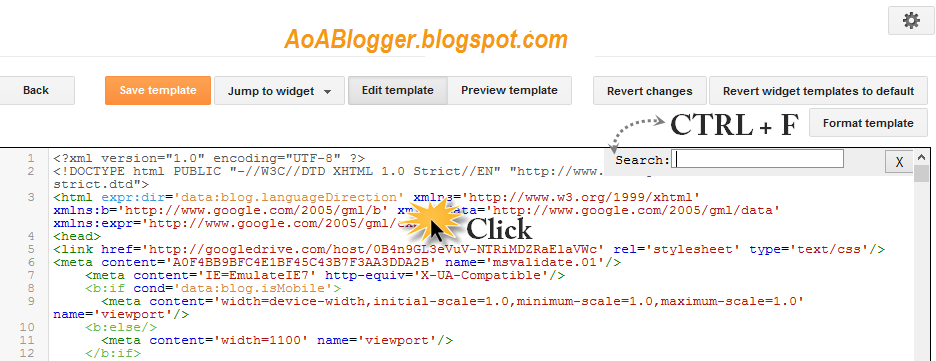
TEMPLATE EDITOR → EDITHTML → PRESS CTRL + F to Find this code </head>
Copy given below code and paste immediately before </head>
.qiuckedit{ Display:none;}
Method 2: Removing tag code from Template:
If you want to remove edit button or wrench icon completely from your template. Then this method is perfect for that. Just Go to
TEMPLATE EDITOR →EDITHTML→ PRESS CTRL + F to find this code and where you found this code remove all codes and save your Template.
<b:include name='quickedit'/>
Now your template is completely free from Quick Edit Pencil or Wrench Icon.
Method 3: Remove Quick Edit Pencil from Blog Post footer:
Sometimes quick edit button is also display in the footer of blog posts. If you want to remove this wrench icon Go to
Blogger Admin Panel → Layout Panel →Now in the right end of
Blog Posts section there will be a Edit Button click on it → Then a pop up window will be appear then uncheck Box of “Show Quick Editing” Option and then save template.